Self-Register with TrueContext
When your team admin sets up Self-Registration, they generate a URL or QR code for a Self-Registration webpage to share with users. Use this link to create your own account. This topic describes how to self-register and what to do if something isn't working as expected.
Tip:This feature is available on request by contacting support@truecontext.com.
Available on all tiers:
Contents
Create an account with Self-Registration
Your team lead should provide a URL or QR code to a Self-Registration webpage where you can create your own account.
-
Enter your email address, first name, and last name. Your team admin can require additional fields, such as a phone number or job title. Complete every required field on the page. Set and confirm a password, and agree to the terms of use and privacy policy.
Tip:Your email address becomes your username to log into the TrueContext Mobile App.
-
Select Continue.
Result: A Confirm your details page displays. The system sends a confirmation email to the email address you provided.
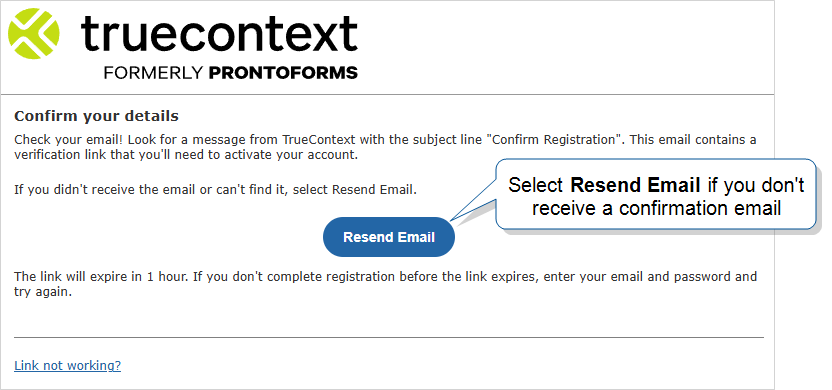 Tip:The confirmation email comes from donotreply@truecontext.com, and it might end up in your spam folder.
If you don’t receive the email or you can’t find it, select Resend Email. The link is valid for one hour. If you don’t complete registration before the link expires, return to step 1 and try again.
-
Go to the confirmation email and select Confirm.
Result: A Registration complete page displays. TrueContext sends you an email that confirms your account setup is complete.
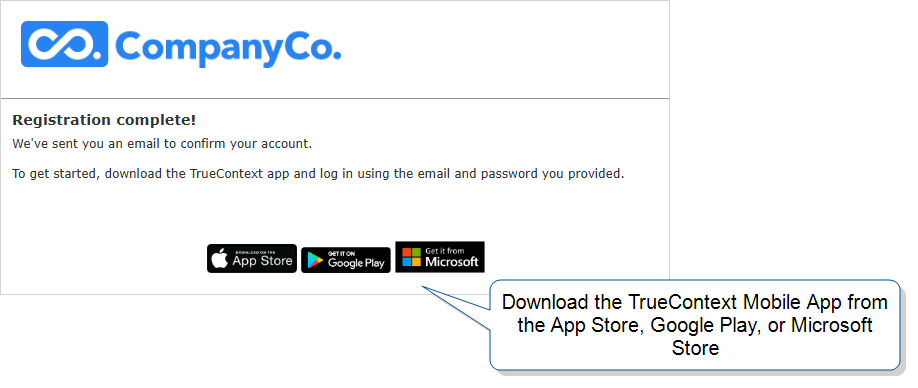 Tip:If the Confirm link doesn’t work, return to the Confirm your details page and select Link not working. Enter the token code from the confirmation email and select Submit. This confirms your account.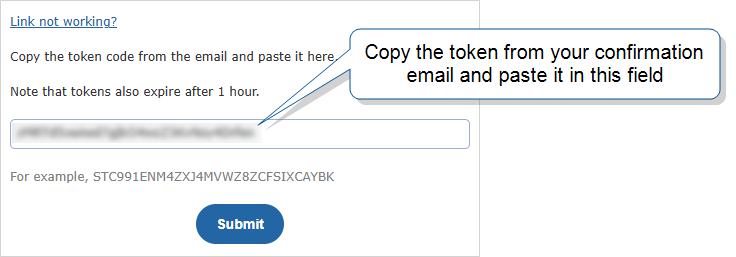
-
Log into the TrueContext Mobile App with the username and password you set up.
Note:Your access to TrueContext might be limited until your team admin confirms you are authorized to use the service. If you can log in but you can’t access the forms you need to complete your work, notify your team admin.
Troubleshooting
This section describes issues and errors you might encounter during Self-Registration, and how to resolve them.
Key not recognized
The Self-Registration URL is no longer valid. Ask your team admin to generate and share a new Self-Registration URL.
Username already exists
If your email address already exists in the system, you will not receive a confirmation email. Instead, the system will send you an email to let you know your email username already exists. This email prompts you to log in with the password you created.
If you did not self-register with this email address, notify your team admin. If you’ve forgotten your password, open the TrueContext Mobile App and select Forgot password.
Max users in billing
Teams on user-based billing pay for a set number of user accounts. Once your team reaches its user account limit, you can’t create a new account with Self-Registration. Ask your team admin to increase the user account limit or remove unused accounts so you can register.