Set Up an HTTP Connection to Microsoft Dataverse
Use an HTTP Connection to authenticate to Microsoft Dataverse. This lets you use HTTP GET Data Sources and Webhooks A Webhook is an HTTP endpoint that an external system exposes to receive data automatically. You can configure an HTTP Data Destination to send form submission data or Documents to a third-party system's Webhook URL, such as posting a notification to Slack when a user submits a form. to read and write data through the Dynamics Web API.
Contents
Available on the Intelligent and Elite tiers:
What you need before you begin
Note:Dynamics 365 and Dataverse use OAuth 2.0 for authentication. For server-to-server integrations, use the OAuth client credentials flow with an app registration in Microsoft Entra ID.
- Admin access to TrueContext, or a role with permission to manage Connections A Connection is an integration point that's used to link a TrueContext Data Source or Data Destination to an external service to import or export data. Data Destinations and Data Sources that share the same external service can also share the same Connection. in the web portal.
- Admin access to your Microsoft Entra ID tenant, or access to an administrator who can create and configure app registrations.
- Access to the Dynamics 365 or Dataverse environment you want to connect to.
High-level overview of the setup steps
Setting up the connection requires completing tasks in both Microsoft Entra ID and the web portal, in sequence.
| System | Action |
|---|---|
| Microsoft Entra | Register TrueContext as an application. Create a client secret and grant API permissions. |
| TrueContext | Create an HTTP Connection using the credentials generated in Microsoft Entra. |
Create the app registration in Microsoft Entra ID
Register TrueContext as an application in Microsoft Entra ID to generate the client ID and secret required for the HTTP Connection.
- In Microsoft Entra ID, go to App registrations, then select New registration.
- Enter a name for the app registration (for example, TrueContext Dynamics Integration), then select Register.
- Record the following values:
- Tenant ID (Directory ID)
- Client ID (Application ID)
- Create a client secret and store it securely:
- Go to Certificates & secrets > New client secret.
- After you create the secret, copy the secret value.
Note:If your organization requires an approval workflow
Approval Workflows enforce a review of submitted records at the form level. Approvers with the required FormSpace permission review each submission and either approve it or send it back to the field user with requested changes. A record that passes review shows the Completion Result "Approved". for app registrations or API permissions, complete that process before you create the TrueContext connection. - Assign Assigning and reassigning control which users are responsible for dispatched records. A dispatcher with the "Can Manage Assignments" FormSpace permission can assign a record to a user or group and reassign it if the original assignee is unavailable. Field users can also claim unassigned records from the Group Inbox. API permissions required for Dataverse access. At a minimum, the app must be able to request a token for the Dynamics resource and call the Web API.
Result: The app registration is ready with the client ID, secret, and Dataverse API permissions required to create the HTTP Connection.
Create the HTTP Connection in the web portal
Use the credentials from your app registration to create an HTTP Connection in the web portal.
- In the web portal, go to Connections > Create Connection.
- Select HTTP.
- In Name, enter a descriptive name (for example, Dynamics 365 Dataverse).
- Configure OAuth client credentials using the following values:
Field Configuration Base Connection URL https://<org>.crm.dynamics.comIn your browser, open the Dynamics 365 or Dataverse environment you want to connect to. In the address bar, find the host name (for example,
https://contoso.org.crm.dynamics.com). Use the part before.crmas your<org>value.Access token URL https://login.microsoftonline.com/<tenantId>/oauth2/v2.0/tokenClient ID Use the Application (client) ID from your app registration. This is different from the secret key. Client Secret Use the client secret value you generated in Microsoft Entra ID. Scope https://<org>.crm.dynamics.com/.default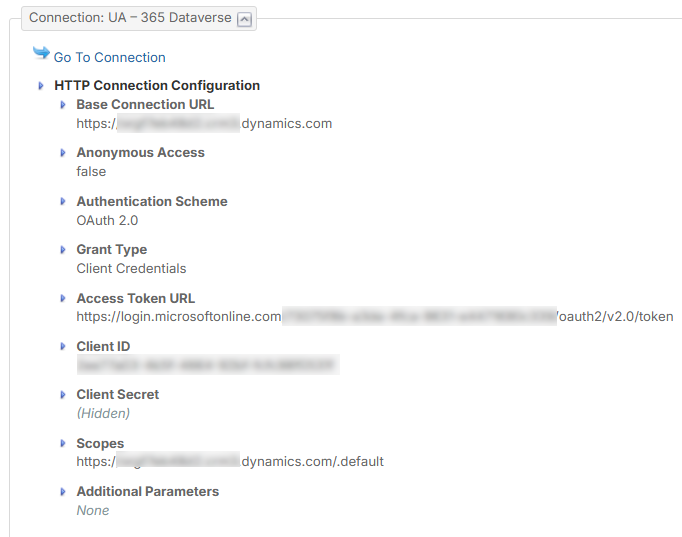
- Select Create.
- Select Connect to verify that the connection is established.
Result: The HTTP Connection can request an access token and call the Dynamics Web API.
Verify that the connection works
After you connect, test a simple GET request using an HTTP Data Source Data sources, also known as "Lookups", are external sources of data that you upload or connect to TrueContext. You can reference this data in a form to populate answers or answer options. Data sources save typing, reduce errors, and make it easy to provide mobile users with only the relevant, most current data. or REST client. Confirm that the base URL and authentication are correct. Remember to include at least one parameter.
Example:
GET https://<org>.crm.dynamics.com/api/data/v9.2/msdyn_workorders?$top=1
Info:Learn more about how to use this Connection: Set up a Webhook A Webhook is an HTTP endpoint that an external system exposes to receive data automatically. You can configure an HTTP Data Destination to send form submission data or Documents to a third-party system's Webhook URL, such as posting a notification to Slack when a user submits a form. and Set Up On-Demand Data Sources Data sources, also known as "Lookups", are external sources of data that you upload or connect to TrueContext. You can reference this data in a form to populate answers or answer options. Data sources save typing, reduce errors, and make it easy to provide mobile users with only the relevant, most current data..
Diagnose and fix connection errors
If the connection fails, use the following steps to diagnose authentication and permission issues.
Test credentials with Postman or curl
If you experience issues connecting, use a REST client such as Postman or curl. Verify your Microsoft Entra credentials and token configuration outside of TrueContext. This helps confirm whether the issue originates in your app registration or the TrueContext connection setup.
Common authentication and permission errors
401 Unauthorized
- Confirm the
Scopematches the Dynamics environment host and ends with.default. - Confirm the access token URL uses the correct tenant ID.
- Confirm the client secret is valid and has not expired.
403 Forbidden
- Confirm the app registration has appropriate Dataverse permissions for the target environment.
- Confirm the integration account has permission to access the table you are querying or writing.