Set Up Rich Text Formatting and AI Text Transformation on Text Areas
As a form designer, you turn on Rich Text formatting Rich Text formatting makes a Text Area question support rich text. Mobile users see a formatting toolbar on device, and the question renders markdown content as styled text. Available on Text Area questions and on Additional Comments that use a Text Area. and AI Text Transformation AI Text Transformation uses AI prompts to refine a mobile user's text in a Text Area question. Mobile users select a prompt, review the AI output, and approve the result before it's saved with the form submission. AI Text Transformation appears as AI Enhancement in the Form Builder. On the mobile app, it appears as a sparkle icon on the formatting toolbar. for individual questions in the Form Builder The Form Builder is the tool that form designers use to create forms. In the Form Builder, accessed from the TrueContext Web Portal, form designers can add and edit pages, sections, and questions, as well as attach data destinations and configure the form's settings.. Rich Text formatting makes a Text Area question (or Additional Comments that use a Text Area) support rich text. The formatting toolbar appears on device, and the question renders any markdown content as styled text. AI Text Transformation adds AI-assisted refinement to a Text Area question. Each capability is turned on per question, so a question can have one, both, or neither.
Warning:Before you turn on Rich Text formatting, plan how the answer needs to appear in each output your form uses. Data Destinations A Data Destination specifies where to send data from a submitted form. You can use Data Destinations to automate data sharing and storage, routing data to a specific service (such as email or cloud storage) in several different formats. and DREL Data Reference Expression Language (DREL) is used to get form data and metadata and add it to a string, such as dates, usernames, or answers to questions in forms.-based document templates send HTML by default. CSV exports, the REST API The TrueContext REST API enables developers to update and manage data communicated between TrueContext and their external, third-party systems. Admins can call our API endpoints after they set up an API application and API Key., email notifications, and other outputs send raw markdown characters. Confirm that downstream systems can handle the format they receive. Rich text answers are stored as markdown, so answers captured while Rich Text formatting is on stay as markdown even if you turn the feature off later. For the full breakdown, go to Where Rich Text formatting renders.
Note:Review any custom PDF, FreeMarker, Handlebars, or DREL document templates that already reference this question after you turn Rich Text formatting on. A template not set up for rich text might show raw markdown characters, such as **bold** or - bullet, instead of formatted text. Update the template if needed.
Available on all tiers with more options on the Elite tier:
Contents
Video demo
Prerequisites
-
You must be an Admin user or a User with Can Create FormSpace
FormSpaces are where forms are stored and organized in the TrueContext Web Portal. A TrueContext Team may have multiple FormSpaces, depending on their needs. Admins can set FormSpace permissions to control which users have access to the forms in that FormSpace. permissions. -
The form is open in the Form Builder for editing.
-
For AI Text Transformation, at least one prompt must exist in the same FormSpace.
-
For AI Text Transformation, an Admin user must have approved AI usage for your team. For details, go to Approve AI Usage for Your Team.
Turn on Rich Text formatting for a Text Area question
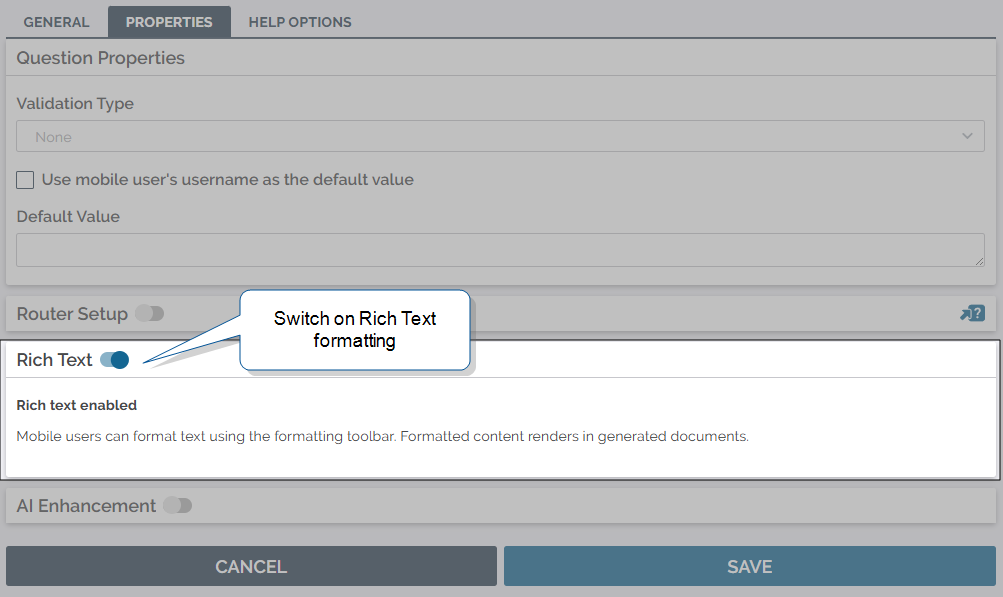
Turning on Rich Text formatting makes the question support rich text. Mobile users see a formatting toolbar on device, and any markdown content in the question renders as styled text. Formatted content appears the same way in the Web Portal Form Submission details page and in generated PDF documents.
-
In the Form Builder, create or edit a Text Area question.
-
Open the Properties tab.
-
Switch on Rich Text.
-
Select Save.
Result: The question shows a Rich Text indicator so you can identify rich text-enabled questions without opening the question's properties.

Note:Rich Text formatting is off by default on every Text Area question, including questions that already exist. Existing plain text submissions stay as plain text. Rich Text formatting applies only to submissions made after you turn it on.
Turn on AI Text Transformation for a Text Area question
Available on the Elite tier:
When you turn on AI Text Transformation for a Text Area question, a sparkle icon appears in the formatting toolbar on device. Mobile users select the icon to open a menu of prompts you've selected for the question. At least one prompt must exist in the same FormSpace as the form. To create a prompt, go to Create and Manage Prompts to Use in Forms.
-
AI Text Transformation applies to Text Area questions only. Additional Comments don't support AI Text Transformation.
-
If Rich Text formatting isn't turned on for the question, the question can't render markdown. Write prompts that return plain text. Otherwise, mobile users see raw markdown syntax (for example,
**bold**) in the answer. For more details, go to How Rich Text formatting and AI Text Transformation work together in the overview topic.
-
In the Form Builder, create or edit a Text Area question.
-
Open the Properties tab.
-
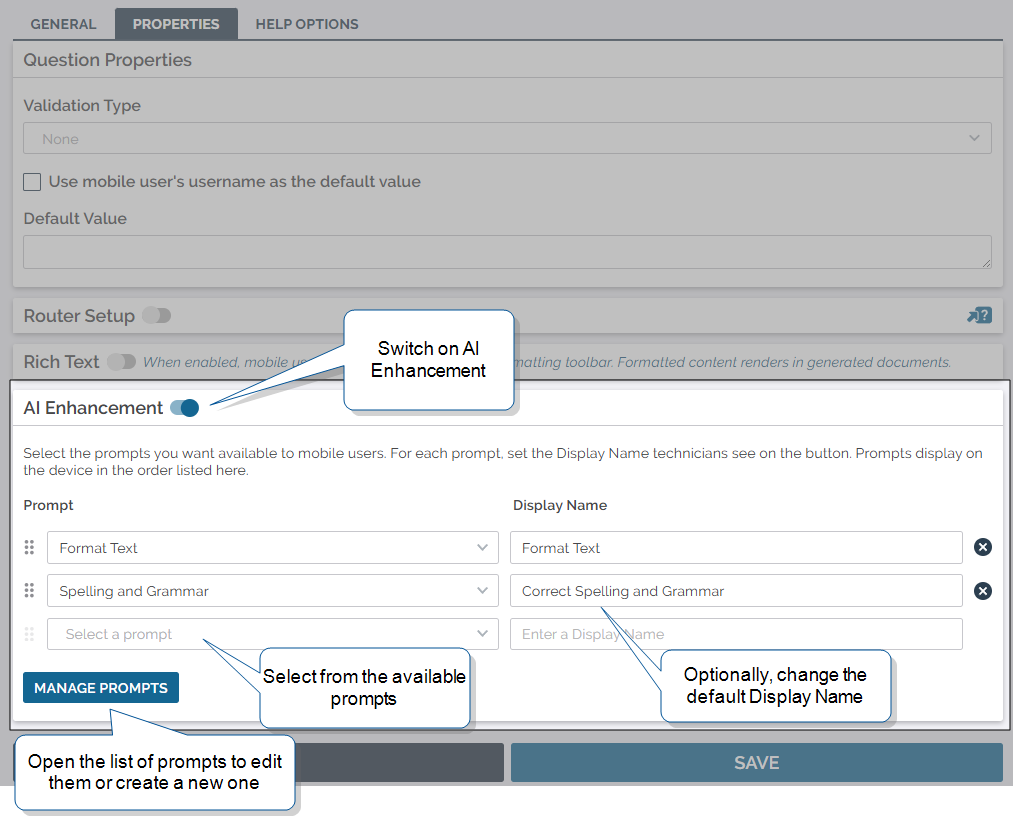
Switch on AI Enhancement.
Result: The Prompt and Display Name fields appear below the toggle.
-
From the Prompt dropdown, select a prompt.
Result: The Display Name field pre-fills with the prompt's default Display Name.
-
(Optional) Edit the Display Name. The label you set here applies to the form. Editing the prompt's default Display Name later doesn't change the label on this form.
-
Repeat the previous two steps to add more prompts. A Text Area question supports up to five prompts.
Tip:Select manage prompts at the bottom of the section to open the Prompts page in a new tab. On that page, you can edit the prompts or create new ones.
-
To change the order of the prompts, drag the handle on the left of a prompt to a new position. Prompts appear on the device in the order shown here.
-
To remove a prompt, select the X next to the prompt.
-
Select Save.
Result: The question shows a Rich Text indicator so you can identify rich text-enabled questions without opening the question's properties.

Turn on Rich Text formatting for Additional Comments
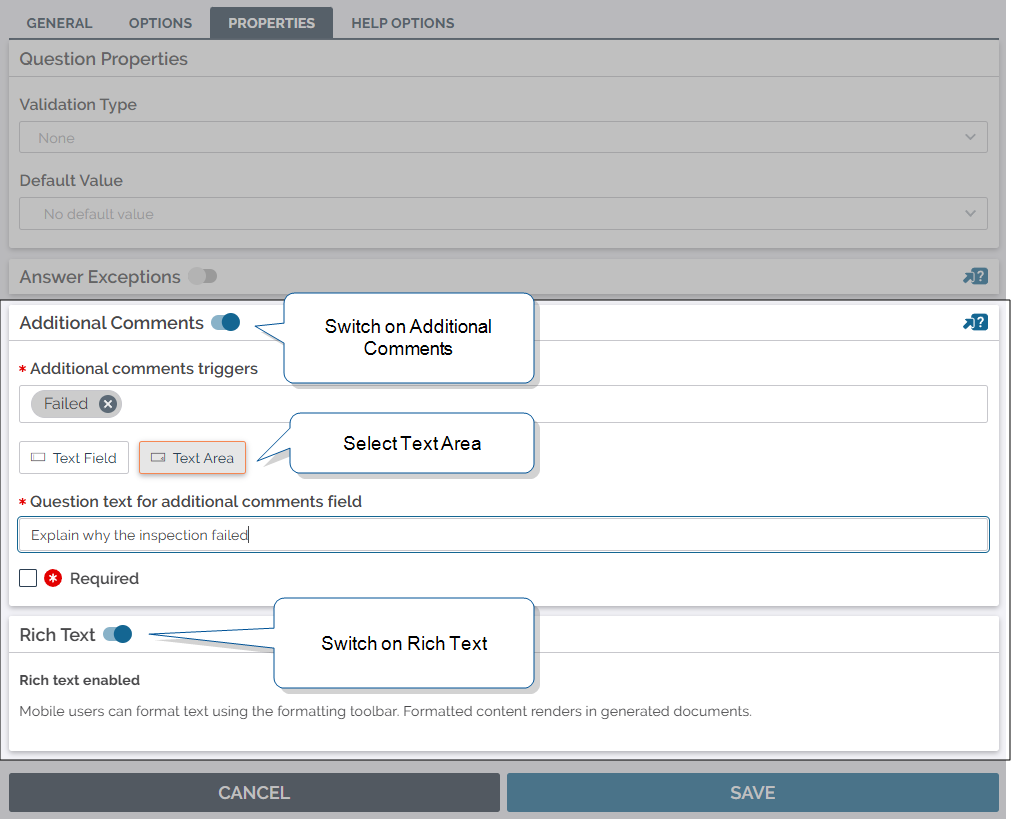
Additional Comments that use a Text Area gain the same formatting toolbar and editing experience as Text Area questions when you turn on Rich Text formatting. Additional Comments that use a text field don't support Rich Text formatting.
-
In the Form Builder, select the question with Additional Comments.
-
Open the Properties tab.
-
Switch on Rich Text.
Note:The Rich Text section appears only when Additional Comments are enabled and set to use a Text Area. If you don't see the section, enable Additional Comments and change the type to Text Area.
-
Select Save.
Result: The question shows a Rich Text indicator so you can identify rich text-enabled questions without opening the question's properties.