Approve AI Usage for Your Team
Before anyone on your team can use AI features in TrueContext, an Admin user must approve AI usage at the team level. This is a prerequisite for AI Text Transformation AI Text Transformation uses AI prompts to refine a mobile user's text in a Text Area question. Mobile users select a prompt, review the AI output, and approve the result before it's saved with the form submission. AI Text Transformation appears as AI Enhancement in the Form Builder. On the mobile app, it appears as a sparkle icon on the formatting toolbar. on Text Area questions. Approval applies to the whole team and can be revoked at any time.
Available on all tiers:
Contents
Prerequisites
-
You must be an Admin user.
Steps to approve AI usage
-
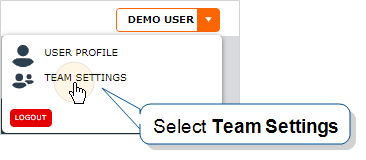
In the Web Portal, select your initials in the user menu, then select Team Settings.
-
On the General tab, go to the AI Usage Approval section.
-
Select Terms and Conditions and read the terms before you continue.
-
Select Approve AI usage.
Result: The Review and approve AI usage dialog opens.
-
Select the confirmation checkbox. The checkbox confirms that you have the authority to enable AI features for your team and that you accept the AI terms and conditions.
-
Select Approve AI usage in the dialog.
Result: The status changes to Approved. The page shows who approved and the approval date.
Steps to revoke AI usage approval
-
In the Web Portal, select your initials in the user menu, then select Team Settings.
-
On the General tab, go to the AI Usage Approval section.
-
Select Revoke Approval.
Result: The status changes to Not approved. AI features are turned off for everyone on the team.
What happens when AI usage approval is revoked
-
AI features stop working for everyone on the team.
-
Existing AI Text Transformation configurations on forms are preserved. Mobile users still see the sparkle icon on the formatting toolbar, and they can still select a prompt from the menu. Running the prompt returns an error.
-
The AI Usage Approval section of Team Settings
The Team Settings page is the page where an admin can manage their team's account and edit certain information, such as assigning a Problem Contact Email Address, toggling push notifications, and viewing the account's billing information. returns to the Not approved state, with the Approve AI usage button available again. -
Re-approving AI usage restores access. Existing configurations resume working without any change in the Form Builder
The Form Builder is the tool that form designers use to create forms. In the Form Builder, accessed from the TrueContext Web Portal, form designers can add and edit pages, sections, and questions, as well as attach data destinations and configure the form's settings..