Use Rich Text Formatting and AI Text Transformation in the Mobile App
When a form designer turns on Rich Text formatting Rich Text formatting makes a Text Area question support rich text. Mobile users see a formatting toolbar on device, and the question renders markdown content as styled text. Available on Text Area questions and on Additional Comments that use a Text Area. or AI Text Transformation AI Text Transformation uses AI prompts to refine a mobile user's text in a Text Area question. Mobile users select a prompt, review the AI output, and approve the result before it's saved with the form submission. AI Text Transformation appears as AI Enhancement in the Form Builder. On the mobile app, it appears as a sparkle icon on the formatting toolbar. for a question, you format your text with the toolbar or refine it with AI Text Transformation on device. Rich Text formatting also works on Text Area questions and on Additional Comments that use a Text Area. AI Text Transformation works on Text Area questions only.
Available on all tiers with more options on the Elite tier:
Contents
Prerequisites
-
You must be a TrueContext Mobile Device user with Can Submit FormSpace
FormSpaces are where forms are stored and organized in the TrueContext Web Portal. A TrueContext Team may have multiple FormSpaces, depending on their needs. Admins can set FormSpace permissions to control which users have access to the forms in that FormSpace. permissions. -
Your Mobile App version must be 28.0 or later.
-
A form designer has switched on Rich Text formatting or AI Text Transformation for the question, as applicable. The formatting procedures need Rich Text formatting. The AI Text Transformation procedures need AI Text Transformation.
Format your text
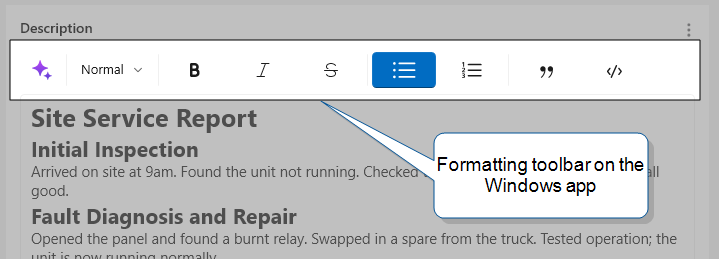
Tap the question and start to enter text. The formatting toolbar shows the actions you can take. On smaller screens, scroll the toolbar sideways to access all the buttons.
-
Bold, italic, strikethrough, and code are inline styles. Select text to format it or select a button before you type to turn the style on. Select the same button again to remove the formatting.
-
Headings, lists, and quotes apply to whole lines. Place the cursor in a line—no need to select text—then select the corresponding toolbar option. The Normal option covers paragraph and heading styles. Select Normal to remove a heading, list, or quote style.
Note:Additional Comments that use a Text Area work the same way.
On each device:
-
iOS, macOS, and Android. The question opens in an editor. Select the checkmark at the top of the screen to save your changes. To discard them, select the X (iOS, macOS) or the back arrow (Android) at the top of the screen.
-
Windows. You edit the question without opening another window. Hover any toolbar button to see its keyboard shortcut.
Use AI Text Transformation
Available on the Elite tier:
When a Text Area question has AI Text Transformation turned on, a sparkle icon appears in the formatting toolbar. Select a prompt to refine your text with AI, then approve or discard the result. AI Text Transformation needs an internet connection.
Note:AI features are available only when an Admin user has approved AI usage for your team. If selecting a prompt returns an error, ask an Admin user to confirm that AI usage is approved. For details, go to Approve AI Usage for Your Team.
-
Tap the question and enter your text.
-
In the toolbar, select the sparkle icon, then select a prompt from the menu.
Result: The AI replaces your text with its enhanced version.
-
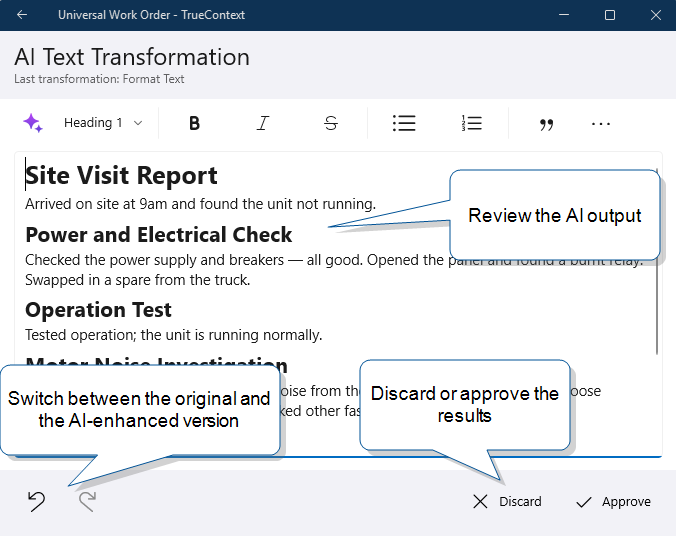
Review the AI output. Use the arrows to step between your original text and the AI output for comparison or edit the output directly.
-
Select Approve to keep the result or discard it to restore your original text.
On each device:
-
iOS, macOS, and Android. The action bar shows back and forward arrow icons, Clear, and Approve. To discard, select Clear, then Clear all or Revert to original.
-
Windows. AI Text Transformation opens a full-screen review page. The action bar at the bottom shows back and forward arrow icons, Discard, and Approve. Select Discard to restore your original text.
Tip:To try a different prompt, select the sparkle icon again and choose another. A prompt you've already applied is not available until you edit the text.