CSV Export of Form Submissions
A CSV export delivers a list of form submissions from the TrueContext Web Portal as a spreadsheet file sent by email. Use a CSV export to back up submission data, search across submissions, build custom reports in Excel, import data into other reporting tools, or share data with external stakeholders. The export includes all data from each submission in the filtered list.
Available on all tiers:
Contents
Export limits
-
You can export up to 1,000,000 submissions in a single export. Apply filters to reduce the number of submissions to export.
-
High-volume exports (for example, over 25,000 submissions) can take minutes to hours to complete, depending on form size. If the export takes too long, filter the results to export a smaller group of submissions. For recurring large exports, use scheduled exports and data destinations to automate delivery to email or other systems.
Export a list of form submissions
-
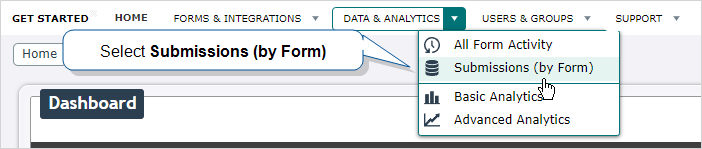
On the Data & Analytics tab, select Submissions (by Form).
-
Select the form you want to export submissions for.
-
On the Submissions page for your form, View Form Submissions in the Web Portal to limit the list to the submissions you want to export. By default, filters limit the list to submissions from the last 30 days.
-
Above the table of results, select CSV.

Result: A pop-up opens with a list of export settings.
-
Configure the export settings and submit the export. Go to Export settings below for details on each option.
Result: The system emails the CSV file to the address you specified when the export completes.
Export settings
Email a download link to
The system delivers the export by email. Your email address appears by default. To send the export to a different recipient, enter another email address.
File options

Include a header row: When set to yes, the CSV export displays column headers above your submission data.
Column headers: Choose what appears in the header for each column that contains data from a form question.
- Question Text — uses the actual text of each question in your form.
- Question Unique ID — uses the shorter Overview: Unique IDs for each question. You set the Unique Identifier when you add the question to the form.
- You can choose to display both the question text and Unique ID
 A Unique ID refers to the specific identifier of a question, form page, form section, or Data Destination. Unique IDs are used as reference points when pulling data for conditional logic, Analytics projects, Data Destinations, and Documents..
Language: Choose the language for any metadata columns. Options are English, French, Spanish, or Japanese.
UTF-8 encoded: Special characters in TrueContext-generated CSV files might display incorrectly when opened in Microsoft Excel. Excel does not recognize UTF-8 encoded CSVs and may display the wrong encoding (for example, "Stéphane" may display as "Stéphane"). To ensure data with special characters imports properly, turn off this option.
Info:Go to Display Accented Characters in TrueContext-Generated CSV Files for detailed information.
Data to include
Select the metadata columns to include in your
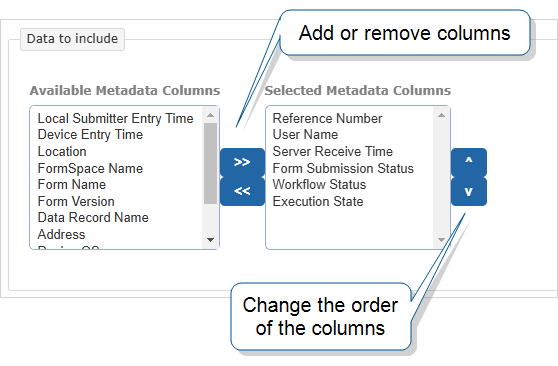
You can add any of the following metadata columns to your
-
Address—Street address of the location where the user submitted the form.
-
Data Record Name—Name of the dispatched or submitted form.
-
Device Entry Time—Date and time when the mobile user submitted the form on the device. The date and time is shown in the mobile user’s local date and time.
-
Device OS—Operating system of the device from which the user submitted the form.
-
Device OS Version—Version of the operating system.
-
Execution State—Indicates if the system successfully executed Data Destinations
A Data Destination specifies where to send data from a submitted form. You can use Data Destinations to automate data sharing and storage, routing data to a specific service (such as email or cloud storage) in several different formats. and other processes related to the submitted form. -
Form Name—Name of the form.
-
Form Submission Status—Status of the dispatched or submitted form within your workflow.
Note:The Form Submission Status references the record state and data state. For up-to-date status information, refer to the Workflow Status, which references the workflow state
The workflow state describes the current stage in a workflow as a result of the last action taken on a record. For example, a record might have the workflow state "Dispatched". and data flow state A data flow state describes how data from a dispatched or submitted record moves between the Web Portal and the Mobile App. For example, a record might have a data flow state of "Downloaded".. -
Form Version—Version of the form.
-
FormSpace Name—Name of the FormSpace
FormSpaces are where forms are stored and organized in the TrueContext Web Portal. A TrueContext Team may have multiple FormSpaces, depending on their needs. Admins can set FormSpace permissions to control which users have access to the forms in that FormSpace. where the form is stored. -
Local Submitter Entry Time—Date and time when the user submitted the form. The date and time is shown in your local date and time.
-
Location—Coordinates of the location where the user submitted the form. Coordinates are shown in a latitude | longitude format.
-
Mobile Application Version—Version of the Mobile App.
-
Reference Number—Data ID and date of the dispatched or submitted form.
-
Server Receive Time—Date and time when a submitted form reached the server. If the form hasn’t been submitted, it shows when the form was dispatched. The date and time is shown in your local date and time.
-
User Name—First name, last name, and username of the user who submitted the form.
-
Workflow Status—The status of a dispatched or submitted record within your company’s workflow. The Workflow Status
The workflow status describes how a record moves through your company’s workflow. All statuses include a workflow state, and some also contain the data flow state or completion result. always lists a workflow state, and might include a data flow state or completion state for additional context.Info:The topic Form Submission Workflow Status and States describes workflow states and data flow states in more detail.
CSV format
The export arrives as a CSV file attached to an email. The structure of the file depends on whether the form contains Repeatable Sections. The examples below use color-coding to highlight the differences between formats.
Submissions without Repeatable Section data
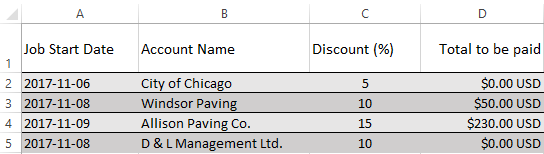
Forms without Repeatable Sections produce a simple CSV format:
- One column for each question
- One row for each form submission
The file pictured below contains four form submissions, one per row.
Submissions with Repeatable Section data
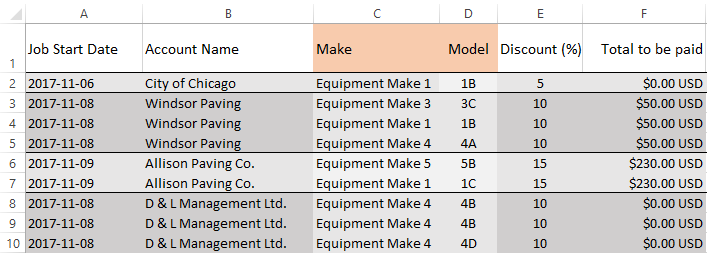
Repeatable Sections let users add multiple entries for the same set of questions. Forms with Repeatable Sections produce these changes in the CSV file:
- One column for each question
- One extra row per Repeatable Section A Repeatable Section is a subform that contains a set of related questions. The data captured is “repeating”, because the field user can complete the same subform more than once, which creates multiple entries. entry (for example, five entries produce five rows)
- Non-repeat data repeats on every row for the same submission
The file below shows four submissions. The orange highlighted columns represent two questions in a Repeatable Section. The first submission has one Repeat entry and takes up one row. The second submission has three entries and takes up three rows.
Submissions with data from multiple Repeatable Sections
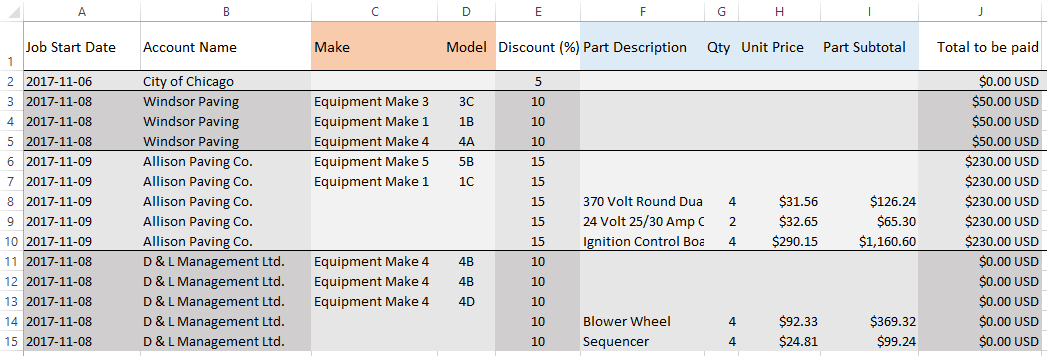
When a submission contains data for more than one Repeatable Section, each section produces its own set of repeated rows. In the example below, the orange columns and blue columns represent two different Repeatable Sections.
Submissions with data from nested Repeatable Sections
Repeatable Sections can contain other Repeatable Sections nested within them. The nested entries also produce extra rows.
The file below shows a single form submission. It has two entries in the Repeatable Section "Floor". The first "Floor" has two nested entries for "Units". The second "Floor" has one nested "Unit" entry.

Rich text values in CSV exports
Values from rich text-enabled questions appear as raw markdown characters in exported CSV cells. For example, bold text exports as **bold** and a heading exports as # Heading.
Info:Go to Where Rich Text formatting renders in the Rich Text Formatting and AI Text Transformation in Text Areas topic for the full breakdown across all output paths.