Use a Webhook
Some forms connect to external systems to retrieve information or trigger actions as you work. When a form includes a Webhook A Webhook is an HTTP endpoint that an external system exposes to receive data automatically. You can configure an HTTP Data Destination to send form submission data or Documents to a third-party system's Webhook URL, such as posting a notification to Slack when a user submits a form., you may notice questions that update automatically, or a Run Action button that you select to fetch data.
Available on the Elite tier:
Contents
Webhook purposes
Forms can include info Webhooks A Webhook is an HTTP endpoint that an external system exposes to receive data automatically. You can configure an HTTP Data Destination to send form submission data or Documents to a third-party system's Webhook URL, such as posting a notification to Slack when a user submits a form. and routing Webhooks, or both at the same time. Each behaves differently depending on how the form is configured.
| Purpose | Trigger | What you see | Additional capability |
|---|---|---|---|
| Info | Runs automatically once all required questions are answered, or manually, when you select Run Action. | Response appears inline in the Webhook question as read-only. | |
| Routing | When you select Run Action. | Response appears inline in the Webhook question as read-only. | Routes values into other questions in the form. You're prompted to accept or decline before values are applied. |
Technician experience
The form uses your answers to call an external system. Depending on how the form is configured, this can happen automatically once you've answered the required questions, or when you select Run Action. As the Webhook moves through its states, you may notice:
-
Waiting for answers: the Webhook question may appear inactive until you've answered all required questions before it. Answer those questions first.
-
Fetching: a loading indicator shows while the form contacts the external system. This usually takes a few seconds.
-
A response displayed inline: information retrieved from the external system appears in the Webhook question as read-only.
-
Other questions filled in automatically: the response may populate answers elsewhere in the form. Review these before submitting.
-
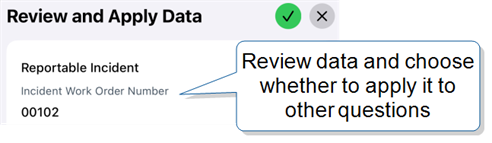
A prompt to accept or decline: some forms ask you to confirm before applying retrieved data. Review the information and select to Accept or Decline.
Steps to complete a form that contains Webhooks
| Step | Action |
|---|---|
| 1 |
From your Inbox or Forms, open a form that contains a Webhook question and fill out the required fields. |
| 2 |
Answer all required questions. If the Webhook is set to run automatically, it starts in the background. Otherwise, select Run Action.
Note:If you leave any parameter questions 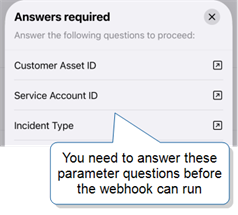
|
| 3 |
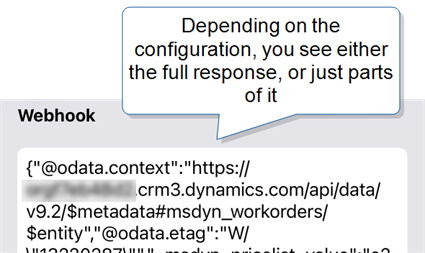
Confirm the action succeeded. If configured, the response appears inline in the Webhook question as read-only.
If there was an error, review any error messages and select Retry once the issue is resolved.
|


Review and confirm data for routing Webhooks
| Step | Action |
|---|---|
| 4 |
Review the data, then select Accept or Decline.
Note:If confirmation is required and you close or save the form without accepting, the app doesn't save the response. Reopen the draft and run the action again to retrieve data. |
| 5 |
Review any questions the Webhook updated.
|
| 6 |
Select Run Action again to refresh the response — for example, if you change a required question. This replaces the existing Webhook answer and any previously applied values. |