Question Type: Webhook
Use the Webhook A Webhook is an HTTP endpoint that an external system exposes to receive data automatically. You can configure an HTTP Data Destination to send form submission data or Documents to a third-party system's Webhook URL, such as posting a notification to Slack when a user submits a form. question type to connect your form to an external system during form completion. It allows you to look up
related data, validate an ID, call an AI service for a score or recommendation, or trigger an action such as creating
or updating a record. The response can appear inline as read-only information, populate other questions in the form,
or both. A formspace-level Webhook must exist before you can add a corresponding Webhook question to a form.
A Webhook is an HTTP endpoint that an external system exposes to receive data automatically. You can configure an HTTP Data Destination to send form submission data or Documents to a third-party system's Webhook URL, such as posting a notification to Slack when a user submits a form. question type to connect your form to an external system during form completion. It allows you to look up
related data, validate an ID, call an AI service for a score or recommendation, or trigger an action such as creating
or updating a record. The response can appear inline as read-only information, populate other questions in the form,
or both. A formspace-level Webhook must exist before you can add a corresponding Webhook question to a form.
Available on the Elite tier:
Contents
What is a Webhook question?
A Webhook question sends a single HTTP request to an external API mid-form, using values already entered in the form. The user doesn’t have to leave the form to access the response. To use a Webhook question, a formspace-level Webhook must be created first, as the question links to it.
When do I use a Webhook question?
Use Webhook questions when you need to connect to an external system mid-form, to validate an ID, retrieve related data, call an AI service, or trigger an action such as creating or updating a record. The response can appear inline as read-only information, populate other questions in the form, or both.
Response Usage
Webhooks A Webhook is an HTTP endpoint that an external system exposes to receive data automatically. You can configure an HTTP Data Destination to send form submission data or Documents to a third-party system's Webhook URL, such as posting a notification to Slack when a user submits a form. can be configured in two ways based on how the response is used. A single webhook can serve both purposes, and both can be used in the same form.
| Purpose | Functionality | Typical use | Routing requires user confirmation | Trigger options |
|---|---|---|---|---|
| Info Webhook | Calls an external system and displays the response as read-only in the webhook question. The technician can see the result but cannot edit it. | AI-generated recommendations, risk scores, compliance flags, site conditions, and other reference data surfaced at the right moment in the form. | Not applicable | Automatic or manual |
| Routing Webhook | Calls an external system and populates other form fields with the response. The technician must tap a button to trigger the call, then confirm before the values are applied. | Populating fields with fetched data: work order details, asset specs, scored or computed values from an external system or AI service, where the technician confirms the result before it takes effect. | Optional; designer can require users to accept or decline before routing. | Manual only |
Steps to set up a Webhook question
-
Configure:
Setting Description Question Text Label that mobile users see for the Webhook question. Unique Identifier for Question Unique name that identifies the Webhook question in the form. Data and Control Type Uses a Free Text-style data type and stores the Webhook response as a text value. Restrictions Controls whether the question is:
- Required — the form can't be submitted until the Webhook action has run successfully. Use with caution: if connectivity is poor, this can block form completion entirely.
- Read only — the Webhook control is visible but the user can't interact with it. The action can still run automatically if configured, but the user can't manually trigger it.
- Hidden on device — the Webhook control isn't visible to the mobile user. The action can still run automatically in the background, but the user has no way to trigger it manually or see the response.
- Hidden on reports — the Webhook response is excluded from submission reports. The action runs and the response is recorded, but it doesn't appear in the output.
-
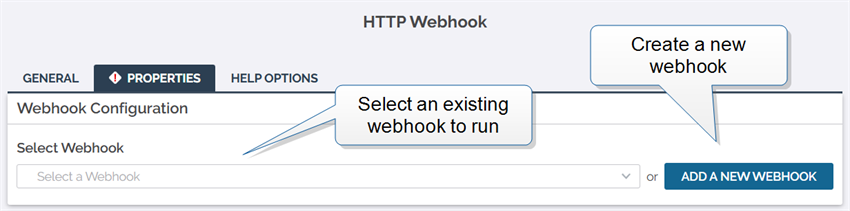
Setting Description Select Webhook Select the Webhook this question calls.
Response Usage:
Display the answer inline as read-only so users can view the result within the formWhen enabled, the Webhook response appears directly in the form after the action runs.

Response Usage:
Route the Webhook response to populate other questions in the formWhen enabled, values from the Webhook response are mapped to other questions in the form. Configure the routing settings in step 4. Webhook Trigger Choose whether an info Webhook runs automatically when all parameter questions
A parameter question is any question defined in your form that's also used to provide values to an On-Demand Data Source or a Webhook query. are answered, or manually when the user selects Run Action.
Parameter Map each Webhook parameter to a question with a supported question type, such as Text Field, Dropdown, or Radio Button.

-
Setting Description Response Type Set to JSON when the response is structured JSON, or Text when the response is plain text.
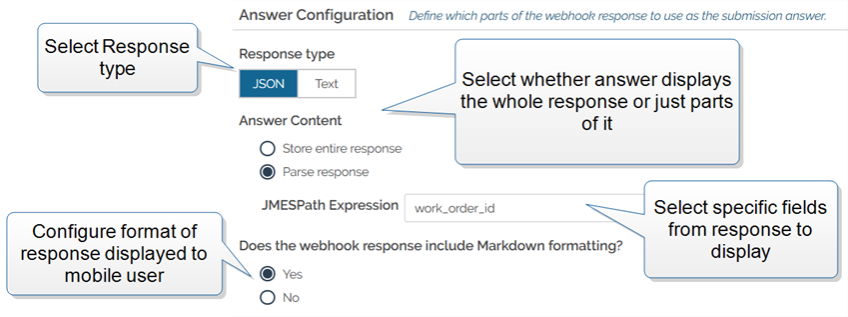
Answer Content Store the entire response, or use a JMESPath JMESPath is a query language for JSON that's used to extract and filter data from JSON content. expression to extract and store specific parts of it. Info:JMESPath is a case-sensitive query language for extracting values from JSON Webhook responses. For a complete reference, see the JMESPath documentation.
Does the Webhook response include Markdown formatting? Enable this only if the external API returns Markdown syntax in its response — for example,
**bold**,*italic*,# Heading, or- list item. When enabled, the mobile app renders the Markdown as formatted text instead of displaying the raw symbols.Note:If you aren't sure, select No. Enabling this when the response doesn't contain Markdown causes the raw syntax characters to appear in the form.
-
Additionally, for routing Webhooks, in Routing Configuration:
Setting Description Require user to confirm incoming data before populating other questions Controls whether users must accept or decline incoming data before it's routed to other questions. Extract answers with Choose the extraction method: Index, Regex, or JMESPath. Question to populate Select the question that receives the extracted value. JMESPath Expression Define the JMESPath expression used to extract the value from the response. -
Select Save to add the Webhook question to the form.
GENERAL
PROPERTIES
HELP OPTIONS
Use the HELP OPTIONS tab to attach help content, such as a short explanation, an internal web page, or a video that explains what the Webhook does and when to use it.
Mobile users can select the help icon next to the Webhook question to see this information before they run the action.
Restrictions
Restrictions question how mobile users interact with a Webhook question. You can set them on the question or control them with Conditional Logic where supported.
| Restriction | Supported |
|---|---|
| Required | ✓ |
| Read only | ✓ |
| Hidden on device | ✓ |
| Hidden on reports | ✓ |
Constraints
-
Webhook questions aren't available in Customer Feedback Forms
Customer Feedback Forms are browser-based, can be used on any platform, and are available to customers and third parties by means of a URL link. They don’t require an app download or a user login. and can't be used in repeatable or template-based sections, Conditional Logic rules, or other form logic such as concatenation. -
Each form supports up to five Webhooks, and each Webhook question requires at least one parameter and supports up to ten.
Examples
The following are common scenarios where a Webhook question adds value during form completion.
-
Validate a customer, asset, or work order ID against an external system before the technician continues.
-
Retrieve additional details, like contact information, asset attributes, or pricing data, and route them into other questions.
-
Call an AI service to generate a risk score, recommendation, or compliance flag based on answers already in the form.
-
Trigger downstream workflows, for example, to create a ticket in a service system or send a notification in another application.
Webhook submission data
Webhook answers store a text value derived from the API response, based on the Answer Configuration settings and any JMESPath expression you configure. The Webhook question always stores this answer; displaying the response inline and routing values to other questions are additional behaviors built on top of it. Routed values appear in their target questions like any other answer, regardless of how they were populated.
Compatible data types
Webhook questions use a text answer type that behaves like the Free Text data type. They support text-based responses only, using simple JSON or plain text structures.
For details on data types and compatible question types, access Question and Data Types in the Form Builder.