Access Work History
This topic describes how to access Work History in the mobile app or through the TrueContext REST API.
Available on the Elite tier:
Contents
Work History features
| Feature | Historical content displayed |
|---|---|
| Record History |
Complete records from submissions that share matching mapped entity |
| Data History |
Data from submissions of the same form that share matching mapped entity values. |
Prerequisites
- To view Work History, mobile users must belong to a FormSpace
 FormSpaces are where forms are stored and organized in the TrueContext Web Portal. A TrueContext Team may have multiple FormSpaces, depending on their needs. Admins can set FormSpace permissions to control which users have access to the forms in that FormSpace. Group with Can View permissions. For more details, please access Manage Groups and Formspace Permissions.
 - To open and submit a Work History-enabled form, mobile users must belong to a FormSpace Group with Can Submit permissions. For more details, please access Manage Groups and Formspace Permissions.
- Devices must have version 26 or later of the TrueContext Mobile App installed.
Considerations
- Work History is read-only. You can't edit other submissions.
- Work History does not include submissions of Customer Feedback Forms.
- Work History you open while online remains available offline. You need an internet connection to retrieve new items or download additional items and attachments.
Access Record History in the mobile app
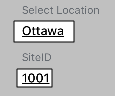
- Answer the mapped entity questions, if they don't already have values.
-
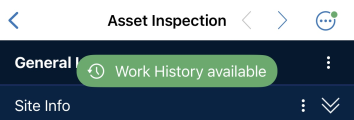
Watch for a notification or badge in the three-dot form title menu to confirm that history is available.
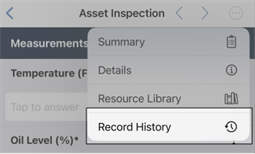
- Select the badge or select Record History Record History refers to complete records from submissions across forms that share matching mapped entity values. It lets users review past work related to the same entity, such as an asset, site, or customer. from the three-dot menu.
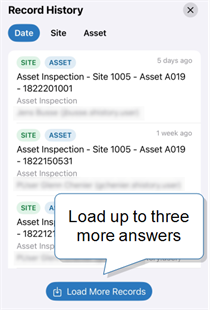
- Access a list of up to three recent records per entity.
- Select a record from the list to open and access full details.
Note:If the record is from the same form you're currently filling out, answers that have history are underlined. Tap an underlined answer to view that answer's history. Requires version 27 or later of the mobile app.
- For Record History from the same form, click on underlined answers to be taken directly to Answer History.
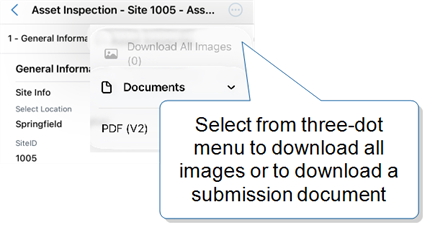
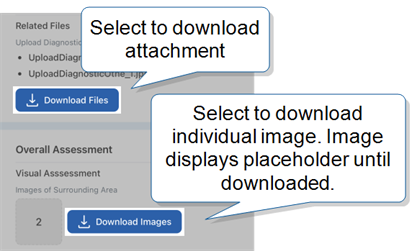
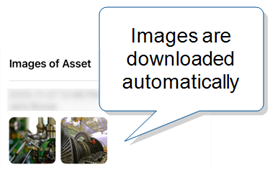
- Download images, attachments, and documents.
From the same menu where you download all images, you can also select Documents to download a form output (submission) document. Requires version 27 or later of the mobile app.
Access Record History for dispatches
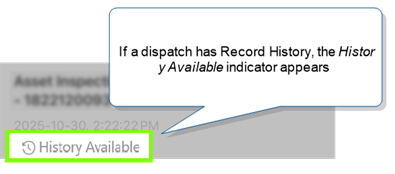
You can access relevant Record History before deciding to accept a dispatch sent to your Inbox or Group Inbox The Group Inbox on your mobile device is a list of records that were sent to a group or FormSpace. If you're available, you can claim a record to work on from the Group Inbox. When you claim a record, it moves from the Group Inbox to your personal Inbox..
-
Select or swipe right on the dispatched item. You can access up to three Record History records in Inbox or up to six items in Group Inbox. Each record displays the relevant entities
An entity is a category that identifies who or what a form is about, such as an asset, site, project, customer, person, or product.. - Select a record to open.
Access Data History in the mobile app
- Answer the mapped entity question, if it doesn't already have a value.
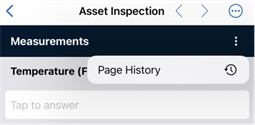
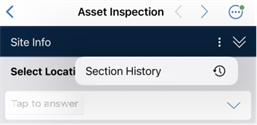
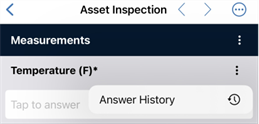
- Select Page/Section/Answer History from the three-dot menu.
-
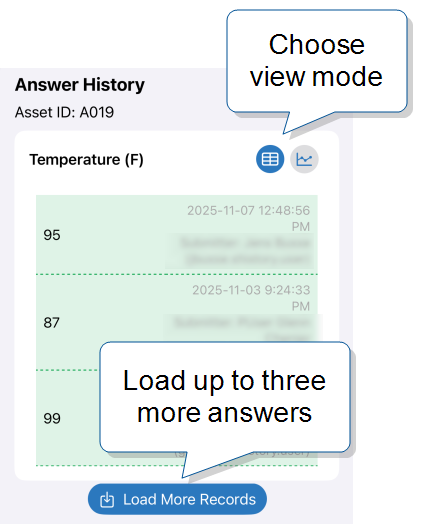
Access up to three recent Page/Section/Answer data points. In Answer History, for numeric values, you can switch between list and chart views.
To load three additional records in Page or Section History, navigate to the last record shown and then select the arrow or Next to advance. Requires version 27 or later of the mobile app.
- Select a record to open and access full details.
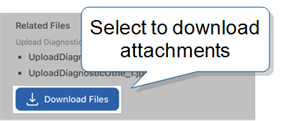
- Download attachments.
Refresh Work History
Work History automatically refreshes to reflect updated values for mapped entity questions.
Access Work History through the TrueContext REST API
Call the List All Form Submissions endpoint to retrieve Work History by mapped entity value. Include the entity ID (workHistoryEntity) and entity value (workHistoryEntityValue) parameters in the request.