Set Up Work History
This topic describes how to set up a form to capture and display Work History.
Available on the Elite tier:
Contents
Work History features
| Feature | Historical content displayed |
|---|---|
| Record History |
Complete records from submissions that share matching mapped entity |
| Data History |
Data from submissions of the same form that share matching mapped entity values. |
Prerequisites
- To enable this feature, you must be a TrueContext Admin or a User with Can Create FormSpace
 FormSpaces are where forms are stored and organized in the TrueContext Web Portal. A TrueContext Team may have multiple FormSpaces, depending on their needs. Admins can set FormSpace permissions to control which users have access to the forms in that FormSpace. permissions.
 -
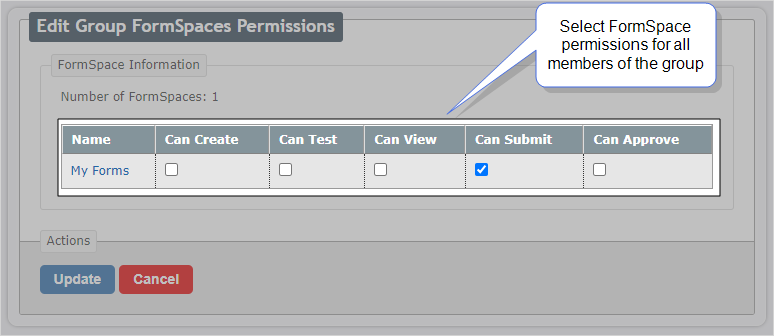
To view Work History, your mobile users must belong to a FormSpace Group with Can View permissions. To open and submit a Work History-enabled form, your mobile users must belong to a FormSpace Group with Can Submit permissions. To set up these permissions, follow the steps here.
- Mobile devices must have version 26 or later of the TrueContext Mobile App installed.
Considerations
- Data History Data History refers to data from submissions of the same form that share matching mapped entity values. It lets users review previous answers related to the same entity, such as an asset, site, or customer. only includes submissions from form versions where the question labels and type match the current form version.
- If you archive a form, its captured Work History remains available to authorized users.
Video Demo
Set up FormSpace permissions for Work History access
FormSpace Group-level Can View and Can Submit permissions control which Work History-enabled forms mobile users can view, open, and submit. Use the following table to determine what permissions your users require per FormSpace.
FormSpace Group Permissions options for Work History
| FormSpace |
Can View |
Can Submit |
Group Permission |
|---|---|---|---|
| FormSpace A | Yes | Yes |
|
| FormSpace B | Yes | No |
|
| FormSpace C | No | Yes |
Note:Users can still view Work History from forms they submitted themselves but can't view submissions by other users. |
Enable Can View and/or Can Submit permissions for a FormSpace group
-
Go to Users & Groups > Groups... > List Groups, and then select a group from the list.
-
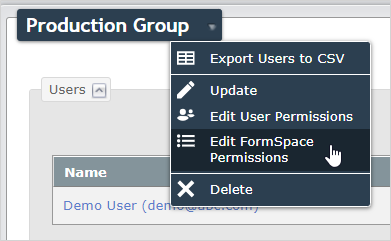
Hover over the arrow next to the group name to show a list of actions.
-
Select Edit FormSpace Permissions.
-
Select Can View and/or Can Submit.
-
Select Update to save your changes.
Info:Access Manage Groups and Formspace Permissions in our documentation portal for full details.
Set up your form to capture Work History
Supported question types
You can map the following question and data types if they’re not in a repeatable section:
- Text Field (Free Text or Integer data types)
- Barcode Scanner
- Dropdown/Radio Button (Free Text or Integer data types; supports Data Source Data sources, also known as "Lookups", are external sources of data that you upload or connect to TrueContext. You can reference this data in a form to populate answers or answer options. Data sources save typing, reduce errors, and make it easy to provide mobile users with only the relevant, most current data. lookup and inline lists)
- String Concatenation
Map entities to questions
- Open your form in the Form Builder The Form Builder is the tool that form designers use to create forms. In the Form Builder, accessed from the TrueContext Web Portal, form designers can add and edit pages, sections, and questions, as well as attach data destinations and configure the form's settings..
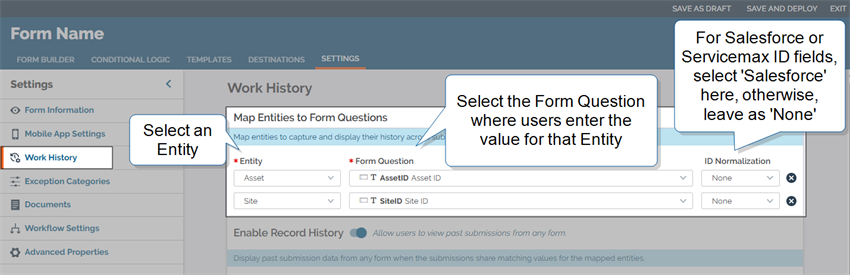
- Go to Settings > Work History.
-
In the Map Entities to Form Questions section:
-
Select an Entity represented by a question in your form.
-
Select the Form Question where users enter the entity value. You can only map one question per entity.
-
If the entity value is an ID field from Salesforce or ServiceMax, set ID Normalization to Salesforce.
-
-
Optionally, repeat step 3 to map a second Entity.
Note:If you map at least one entity to a question, the form can capture Record History Record History refers to complete records from submissions across forms that share matching mapped entity values. It lets users review past work related to the same entity, such as an asset, site, or customer. to display in other forms, even if it does not display it itself
Set up your form to display Work History
-
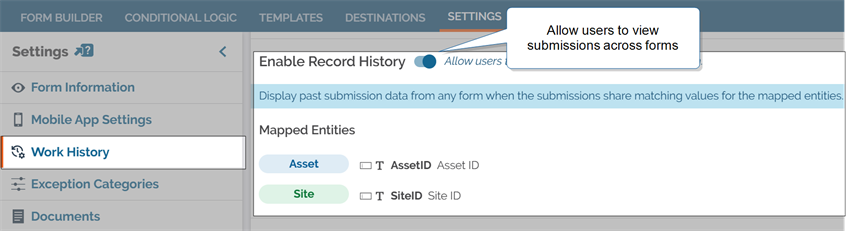
Enable Record History
-
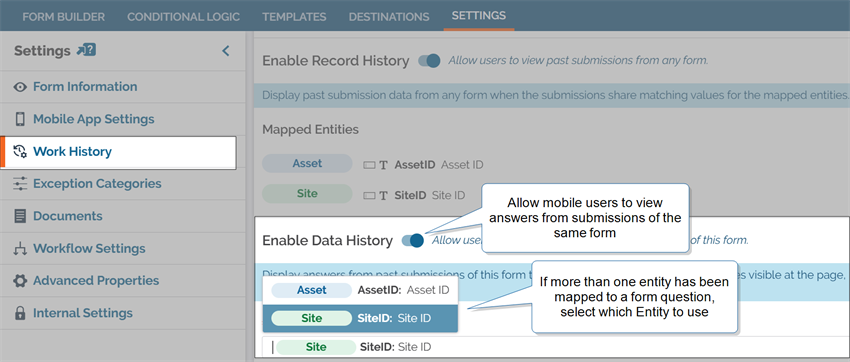
Enable Data History
Advanced set up video demo
This video covers entity types, best practices, permissions, and troubleshooting.