Set Up a Salesforce Query Data Source
A Salesforce Query Data Source is used to fetch data directly from Salesforce objects—like Accounts, Contacts, or Work Orders—into your TrueContext forms. You write a SOQL query to choose which records and fields to retrieve. This topic explains how to set up a Salesforce Object Query Language Data Source Data sources, also known as "Lookups", are external sources of data that you upload or connect to TrueContext. You can reference this data in a form to populate answers or answer options. Data sources save typing, reduce errors, and make it easy to provide mobile users with only the relevant, most current data.. It also covers how to enable the on-demand option, so your field technicians always get the most up-to-date data.
Available as an add-on for the Intelligent and Elite tiers:
Contents
Step-by-Step: Set up a Salesforce Query Data Source
Prerequisites
- You must have the right permissions: Admin or Can Create in your FormSpace FormSpaces are where forms are stored and organized in the TrueContext Web Portal. A TrueContext Team may have multiple FormSpaces, depending on their needs. Admins can set FormSpace permissions to control which users have access to the forms in that FormSpace..
- Your team needs a Salesforce connection set up in TrueContext.
Create the Data Source
-
In the TrueContext web portal, go to Forms & Integrations > Data Sources.
-
Select Create Data Source.
-
Choose Salesforce Query as the type.
-
Give the Data Source a clear name, such as Salesforce Work Orders.
-
Add a description to help others know what this Data Source does.
-
A Salesforce Query Data Source supports the on-demand option, which enables dynamic data retrieval based on information provided in a form.
Do you want the Mobile App to fetch the latest data from Salesforce using the on-demand option?
-
If yes, select the Enable on-demand data retrieval… option, and then go to the section Set Up the Salesforce Connection.
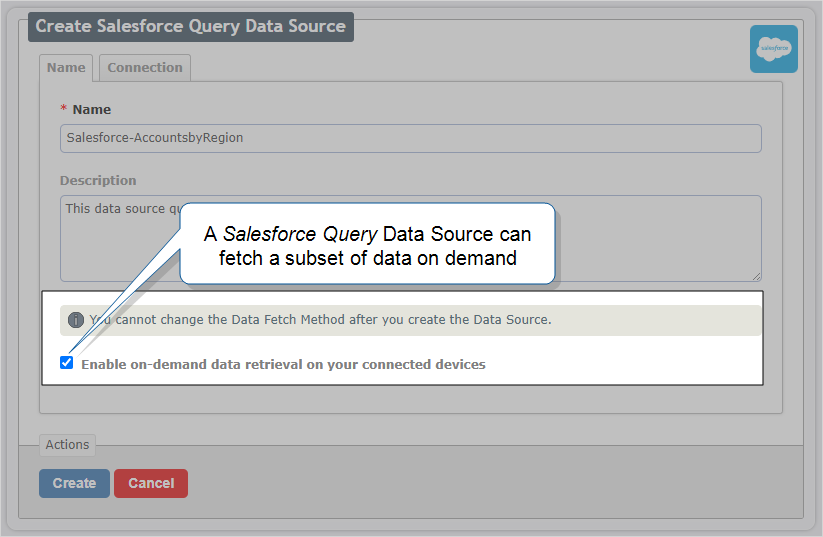
Note:Once you create the Data Source, you can’t change your selection for the on-demand option.
-
If no, go to the section Set up the fetch options (scheduled).
-
Set up the fetch options (scheduled)
-
Select Push updates to devices after a fetch to notify Mobile App users when new data is fetched.
Tip:Your Mobile App users must enable push notifications to receive them. Remember that too many push notifications might distract your field technicians.
-
Do you want to fetch data automatically?
-
If yes, select Automatically fetch new data…, and then choose the fetch frequency and time zone.
Info:The topic Data Sources Overview: How the system schedules Data Source fetches describes these settings in more detail.If you need to fetch data more often than once per hour, you can use an API call to fetch Data Source contents.
-
If no, you can manually fetch new data when you need to. Go to step 4.
-
-
Do you want to start the schedule now?
- If yes, select Activate this schedule.
- If no, go to step 4.
-
To fetch the data as soon as you save the setup, select Fill the Source Data immediately.
Set Up the Salesforce Connection
-
On the Connection tab, select an existing Salesforce connection or create a new one.
If you need a new connection and you’re not an Admin user, ask your TrueContext team admin to create the connection.
-
Write and test your SOQL Query.
Tip:The Salesforce developer documentation includes guides and resources Resources are materials that field technicians can access while they work on records in the Mobile App. A resource might be a Resource Document, like a manual or a floor plan, or a Resource Image, like a schematic or a diagram. Resources are uploaded to a FormSpace and can be referenced in forms or made available in the Resource Library. to help you understand, use, and build SOQL queries:- Use the Salesforce Object Query Language (SOQL) Reference Guide.
- Test your query in the Developer Console Query Editor before you add the query to the Data Source.
-
In the Query field, write your SOQL query. For example:
SELECT Name, Account__r.Name, Calibration_Due_Date__c, Equipment_Name__c, Equipment_Name__r.Name, Model__c FROM Calibration_List__c
-
Did you select the on-demand data option?
-
If no, go to step 7.
-
If yes, add a
WHEREclause that includes from one to ten parameters. These parameters are used to filter data based on values provided in a form. For example:SELECT NT_Work_Order__r.name, name, task_type__c, result__c FROM Work_Order_Task__c WHERE NT_Work_Order__r.name = '{{WorkOrderName}}' ORDER BY task_type__cIn this example, the
{{WorkOrderName}}parameter will be mapped to a question in a form. The value provided will be used to fetch a subset of data from Salesforce.Note:-
Format parameter names as strings in double braces. Use only letters, numbers, hyphens, or underscores.
-
Your query must include at least one and no more than 10 parameters. Each parameter name in the SOQL query must be 255 characters or fewer.
-
The field type in Salesforce dictates whether quotes are needed in the query.
-
Many Salesforce unique identifiers are alphanumeric and should have straight quotes.
-
If the field in Salesforce is a Number type field, then you should specify the parameter without quotes.
-
-
-
-
Complete a Test Fetch to ensure that query returns the expected results.
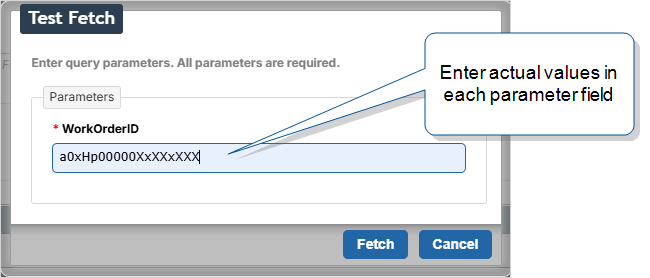
Select Test Fetch, enter actual values for all query parameters, and then select Fetch.
Result: A successful fetch displays the first ten matching rows.
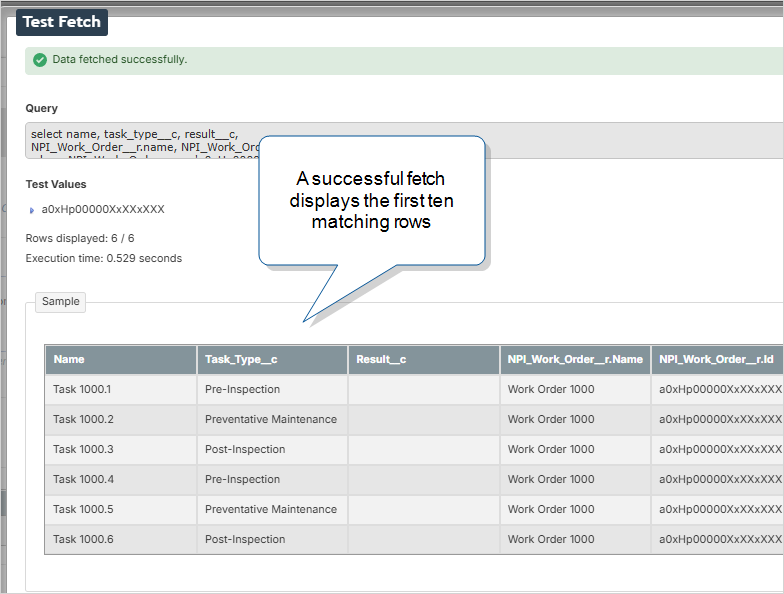
Note:The Test Fetch must return at least one result before you can save the Data Source. If the Test Fetch fails, adjust your query or parameter values and try again.
-
If your test returns more than 10 rows, and you want to see all of the matching rows, select Download CSV.
Result: The system downloads a CSV file to your device. Open the file to see all of the data returned by the query.
-
Select the type of Salesforce API based on the number of records.
Do you have 10,000 or fewer data records in the Salesforce object?
-
If yes, select Query.
-
If no, select Bulk.
Note: The Bulk API improves speed and efficiency but does not support all SOQL functions or field types. Refer to the Salesforce documentation for more details. TrueContext only supports the Salesforce Bulk API version 1.0.
-
-
Select Create to save the new Data Source.
Tip:If you change the Data Source query or connection after you save an On-Demand Data Source, you must complete another Test Fetch.
-
Use the Data Source in a form.
Info:The topic Use Data Sources in Forms provides detailed steps to set up your form, including steps for using an On-Demand Data Source.
SOQL query structure for On-Demand Data Sources
| Clause | What it does | Example |
|---|---|---|
| SELECT | Defines the fields to return | SELECT NT_Work_Order__r.name, name, task_type__c, result__c
|
| FROM | Specifies which Salesforce object to query | FROM Work_Order_Task__c
|
| WHERE | Filters results based on the parameters | WHERE NT_Work_Order__r.name = '{{WorkOrderName}}'
|
- You can use up to 10 parameters in your WHERE clause.
- Each parameter—like
{{WorkOrderName}}—must be mapped to a question in your form. - You can select up to 10 fields to return.
Best Practices
- Use clear names and descriptions for your Data Sources.
- Test your SOQL queries in Salesforce first.
- Limit the number of fields and rows to what you really need.
- Use on-demand for data that changes often or is too large to fit standard size limits.